How to Play Minecraft with Friends
On this page
There are 4 ways to play Minecraft with friends: Open to LAN (free, same Wi-Fi only), joining a public server (free, but not private), hosting a server on your own computer (free, needs port forwarding), or renting a hosted server (paid, no setup). All four require Minecraft Java Edition and a Microsoft account, and everyone must be on the same game version. For most friend groups, a hosted server like LuckyChunk ($20/month, up to 20 players) is the easiest way to play together online - pick a version, pay, and share the address.
Minecraft has no "invite friend" button. No friends list, no party system, nothing. You open the Multiplayer menu for the first time and it just asks for a server address you don't have.
This guide covers every way to play Minecraft with friends - what each one costs, how to set it up, and how to fix it when someone in your group can't connect.
What You Need Before You Start
Whatever method you pick, multiplayer has the same three requirements:
- A paid copy of Minecraft Java Edition. Multiplayer doesn't work on cracked clients - servers check your login against Mojang's servers. If you bought Minecraft after 2022, you own both Java and Bedrock in one bundle.
- A Microsoft account. Every Java player logs in through Microsoft now. Old Mojang accounts get forced to migrate.
- The same game version as everyone else. This is the one that trips people up. A 1.12.2 server rejects a 1.21 client, and even 1.21.1 vs 1.21 won't connect. There's a version-matching walkthrough further down.
Java or Bedrock? Check This First
Java and Bedrock are two different games that happen to look the same, and they cannot play together. Before you set anything up, find out what everyone in your group is playing on:
- Java Edition runs on PC only (Windows, Mac, Linux). It's the original version, and it's what this guide covers.
- Bedrock Edition is what you have on Xbox, PlayStation, Switch, and phones. The Windows app store version is also Bedrock.
If your friend is on a console, they're on Bedrock and can't join a Java world, full stop. Get this sorted before anyone buys anything - a group split across editions has to pick one and stick with it.
Method 1: Open to LAN (Same House, same Wi-Fi)
LAN is the fastest way to play Minecraft with a friend, and it's completely free. The catch is in the name: Local Area Network. You both have to be on the same Wi-Fi, which in practice means the same house.
How to open your world to LAN
- One player opens a singleplayer world
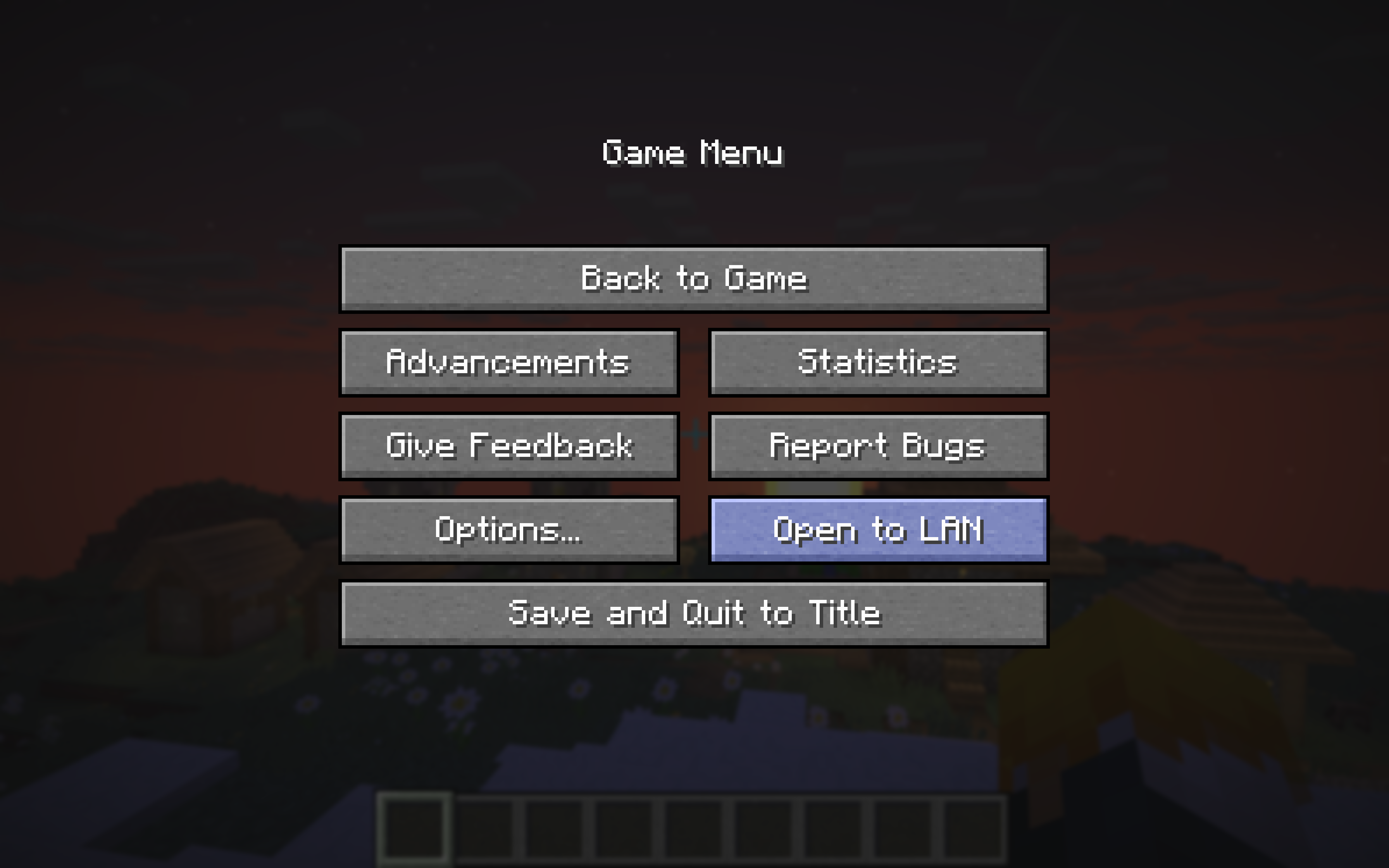
- Press Esc to open the pause menu and click "Open to LAN"
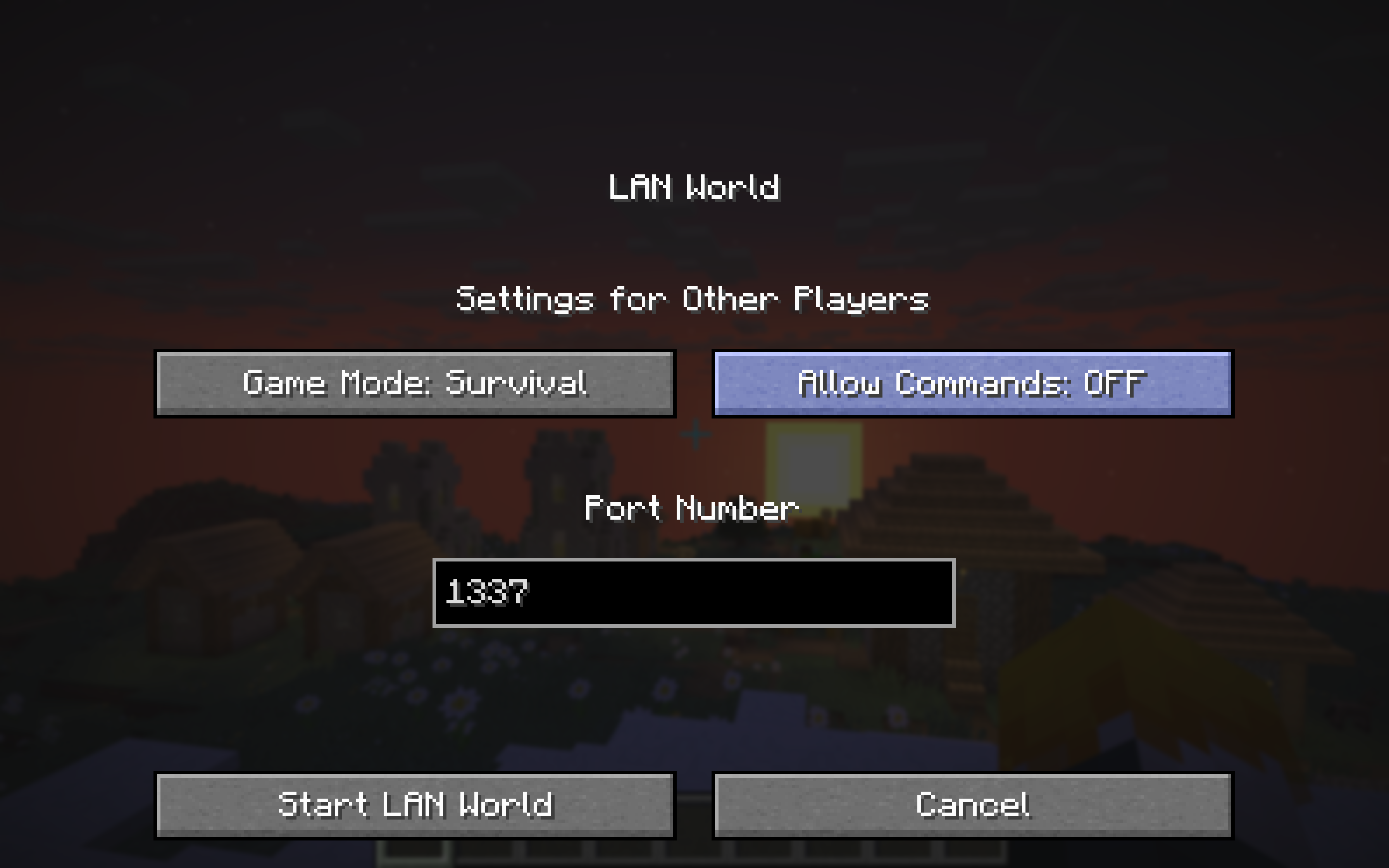
- Pick a game mode, decide whether cheats are on, and click "Start LAN World"
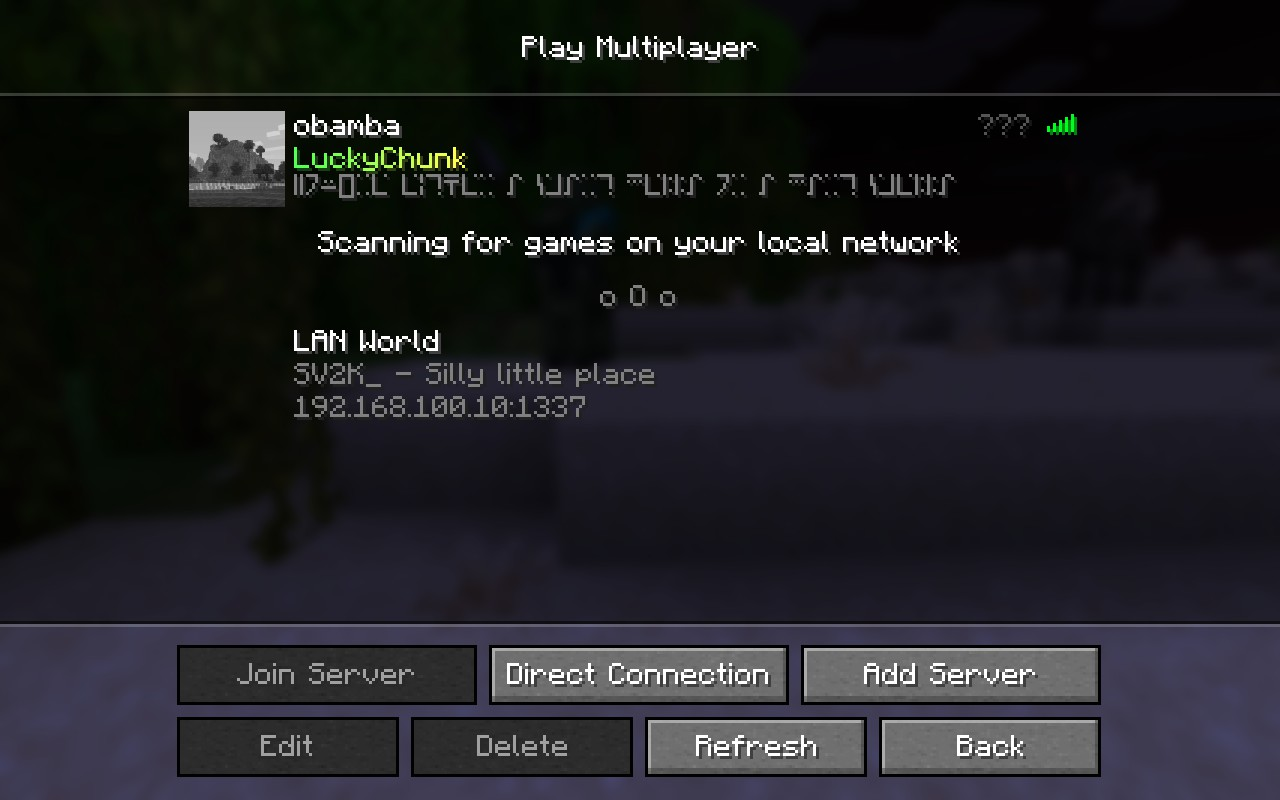
- Everyone else opens Minecraft, clicks Multiplayer, and waits a few seconds - the LAN world
appears in the list automatically
The downsides: the world only exists while the host is playing - they quit, everyone gets kicked. Performance rides on the host's computer, so if their laptop chokes with three players loading chunks, everyone lags. And there's no way to use LAN over the internet, no matter what a YouTube tutorial from 2014 promises.
Best for: you're at a friend's place and want to play right now. For anything ongoing, keep reading.
Method 2: Join a Public Server
Public servers are free, always online, and you can join one in the next two minutes. Hypixel alone usually has tens of thousands of people on at once playing Bedwars, SkyBlock, duels, all of it.
To join one, you just need its address. For example, Hypixel is mc.hypixel.net - the connection steps below work for any server. Meet your friends in the same lobby and you're playing Minecraft together without paying anything.
A public server is not your world, though. You can't build a base in a Hypixel lobby. Survival servers exist, but you're sharing the map with strangers, the rules are someone else's, and your build can get griefed while you sleep. Fun, but not the same as having a world of your own.
Best for: minigames with friends, zero budget, no commitment.
Method 3: Host a Server on Your Own Computer
This is the free way to get a private world that works over the internet. You download the official server file from Mojang, run it on your PC, and your friends connect to your IP address. Your computer literally becomes the server.
Here's what setup involves:
- Download the server .jar file from minecraft.net (it must match the version your group plays)
- Install the right Java version - Minecraft 1.17 and newer needs Java 17+, older versions run on Java 8
- Run the server once, accept the EULA, then configure server.properties
- Set up port forwarding on your router for port 25565, which means logging into your router's admin page and following instructions that are different for every router brand
- Find your public IP address and share it with your friends
Budget 30 to 60 minutes the first time, and expect step 4 to eat most of it. Port forwarding is where this method breaks for most people - every router buries the setting somewhere different, and some internet providers block it entirely.
Two more things worth knowing. Sharing your public IP means everyone who has it can roughly locate your home network, so think about who's getting the address. And the server only runs while your PC is on, so your friends can't play while you're at school or asleep - unless you leave the computer running 24/7.
If you want to go this route, our how to make a Minecraft server guide walks through every step in detail.
Best for: you like tinkering, you're comfortable in your router settings, and free matters more than convenience.
Method 4: Get a Hosted Server
A hosted server is the same private world as Method 3, except it runs in a data center instead of on your PC. It's online 24/7, nobody's home IP gets shared, and there's no port forwarding because the hosting company already did the networking. This is what most friend groups land on after they get tired of "can you start the server?" texts.
Traditional hosting companies still make you do homework, though - you pick RAM amounts, CPU tiers, server software, and then you learn their control panel. That's fine if you know what those words mean. Most people just want to play.
How it works with LuckyChunk
LuckyChunk cuts the homework out. The entire setup:
- Pick your Minecraft version - current like 26.2, or the old ones like 1.12.2 and 1.8.8 that most hosts don't bother with
- Pay $20/month
- Share the server address with your friends
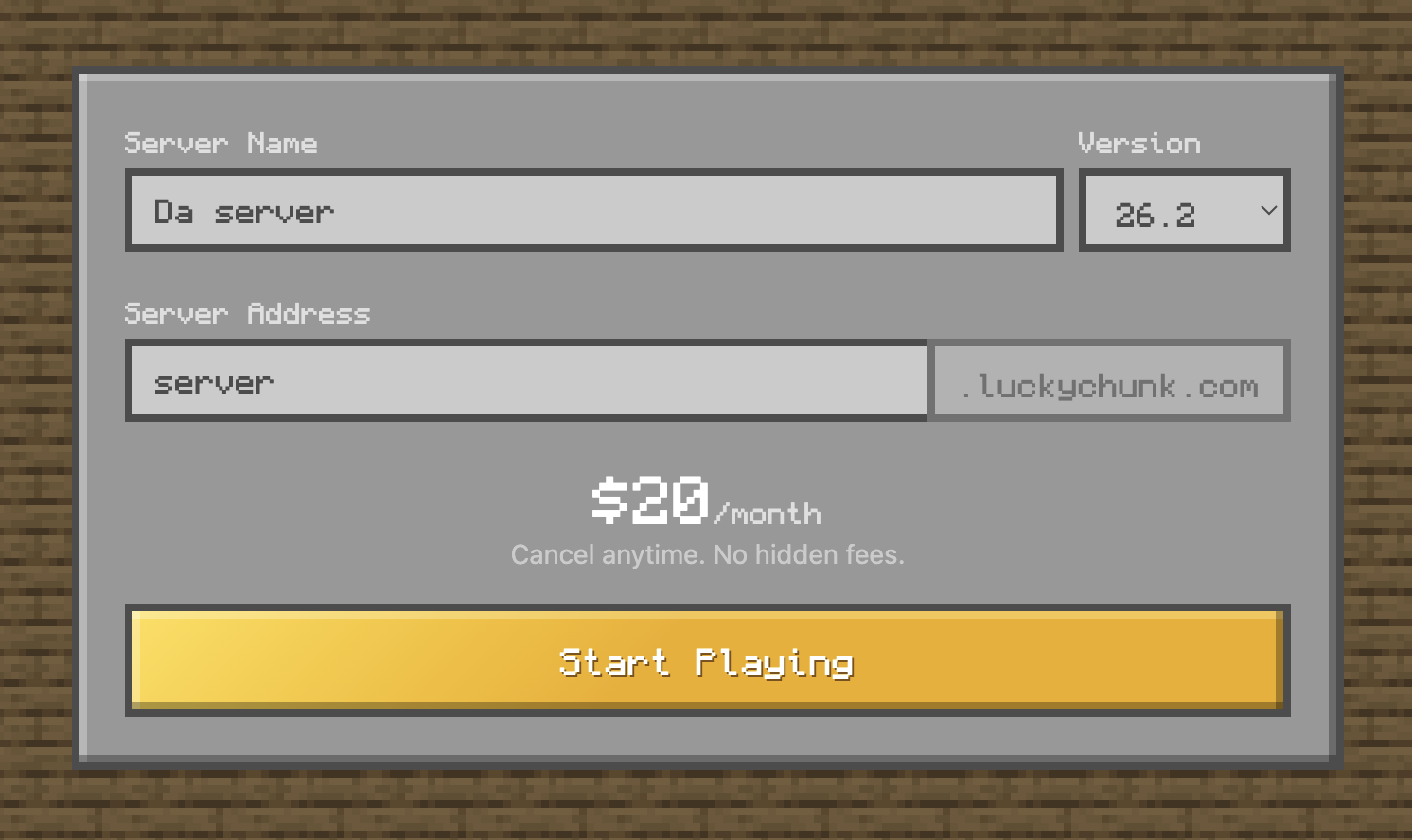
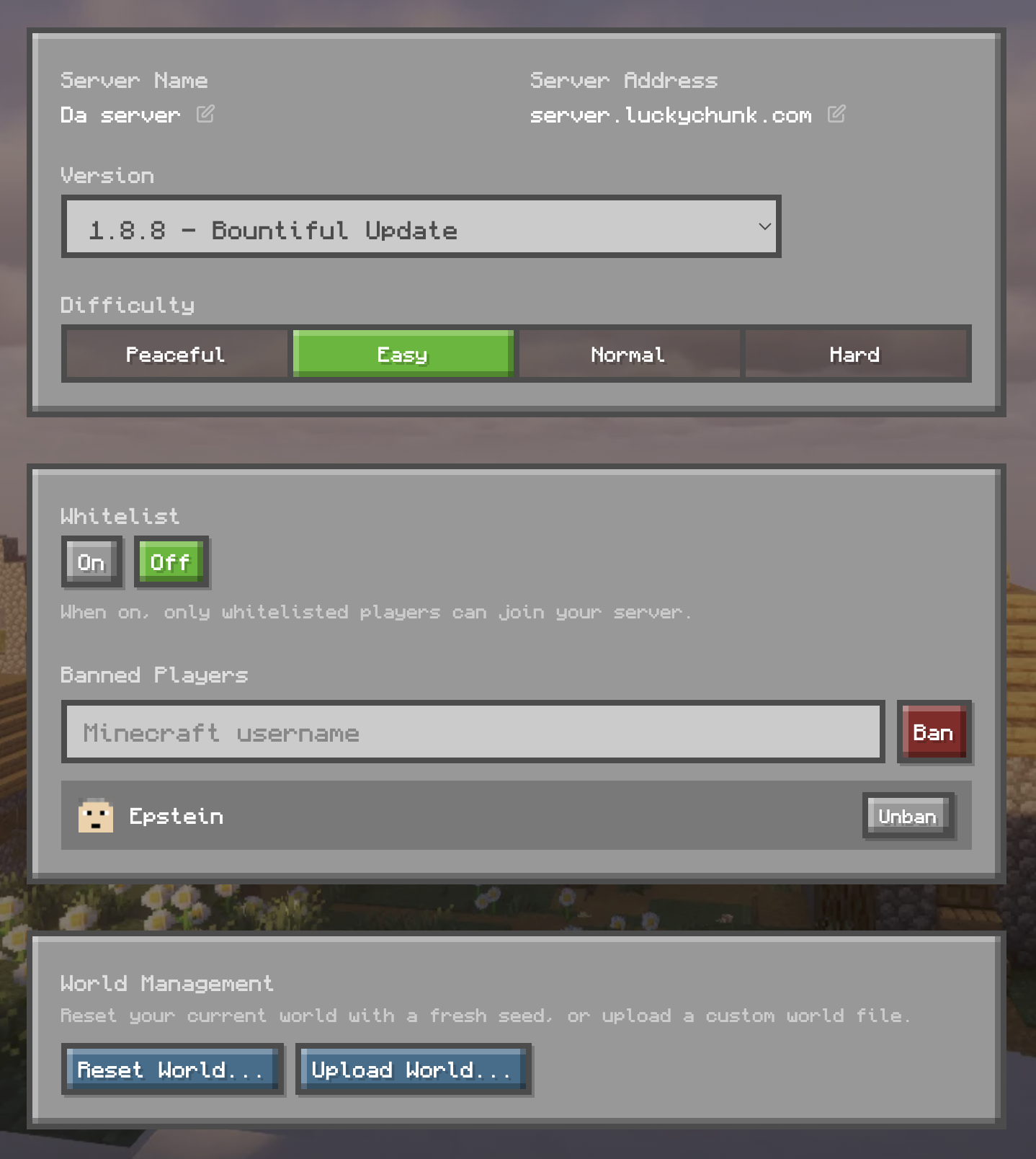
That's the whole thing - your server is running in under a minute. Up to 20 players can join, and there's a simple panel for the stuff you'll actually want: whitelisting players so randoms can't get in, banning that one friend's little brother, switching versions, resetting the world.
One plan, one price. We don't do RAM tiers, and there's nothing extra to buy at checkout. If you're wondering whether free hosting could do the same job, we tested the big ones in our free Minecraft server hosting guide - short version: free hosts exist, but the queues and forced restarts get old fast.
Best for: friend groups who want a private world that's always online, without anyone becoming the IT department.
Every Way to Play Minecraft with Friends, Compared
| Feature | LAN | Public server | Self-hosted | LuckyChunk |
|---|---|---|---|---|
| Cost | Free | Free | Free | $20/mo |
| Private world for your group | ✓ | ✗ | ✓ | ✓ |
| Play over the internet | ✗ | ✓ | ✓ | ✓ |
| Online 24/7 | ✗ | ✓ | Only if your PC stays on | ✓ |
| Max players | 3-4 realistically | Hundreds | Depends on your PC | 20 |
| Setup time | 1 minute | 2 minutes | 30-60 minutes | Under a minute |
| Technical knowledge needed | None | None | Port forwarding, Java, config files | None |
| Pick older versions | ✓ | ✗ | ✓ | ✓ |
How to Join Friends on a Minecraft Server
Java Edition has no friends list. If you searched "how to add friends on Minecraft Java," the answer is that you don't add them in-game - you both join the same server, and that's the whole system. Whoever runs the world shares the address (something like survival.luckychunk.com or an IP), and everyone does this:
- Open Minecraft Java Edition on the same version as the server
- Click Multiplayer from the title screen
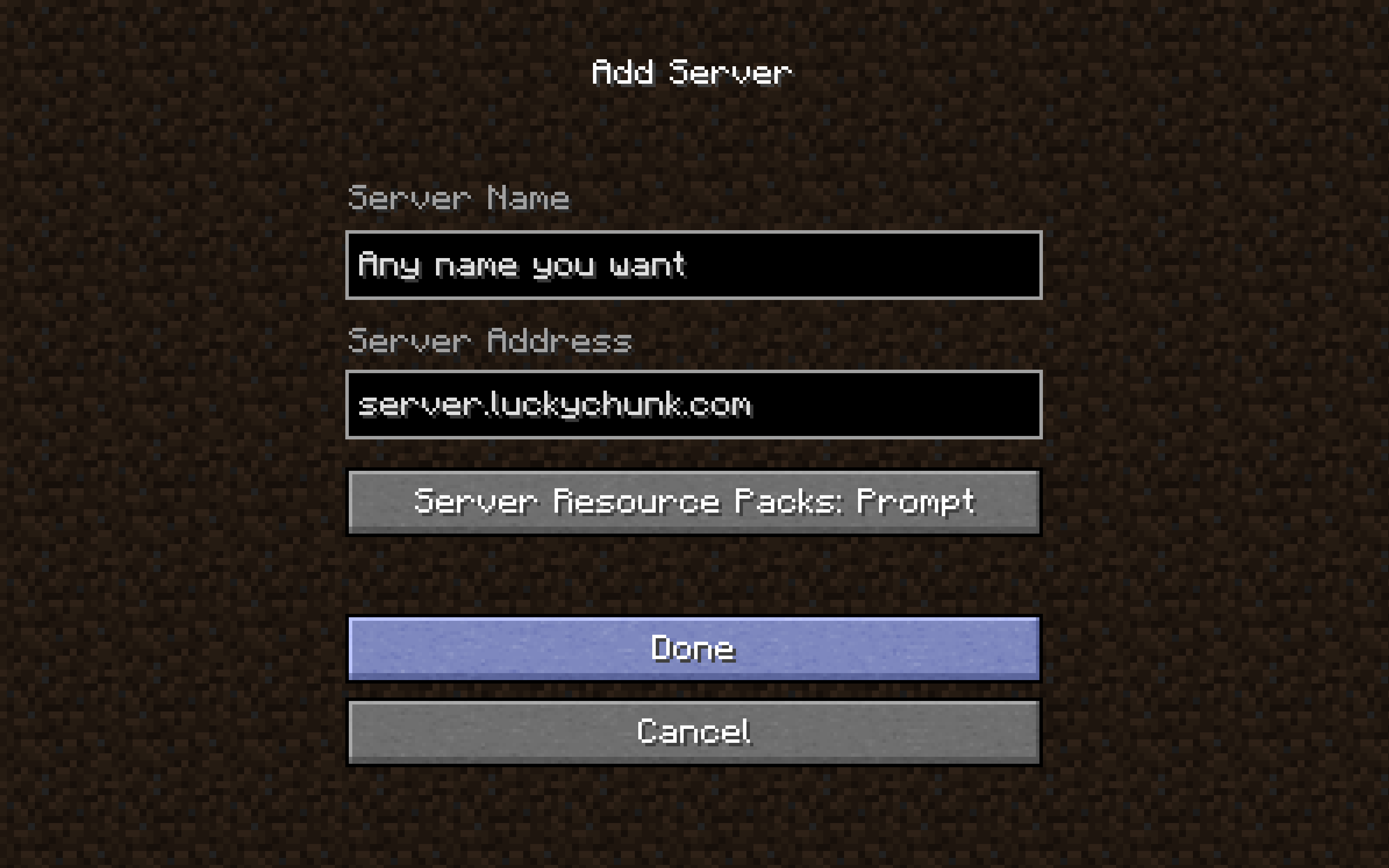
- Click Add Server
- Name it whatever you want, paste the server address into the address field, and click Done
- The server shows up in your list with a green connection bar - double-click it to join
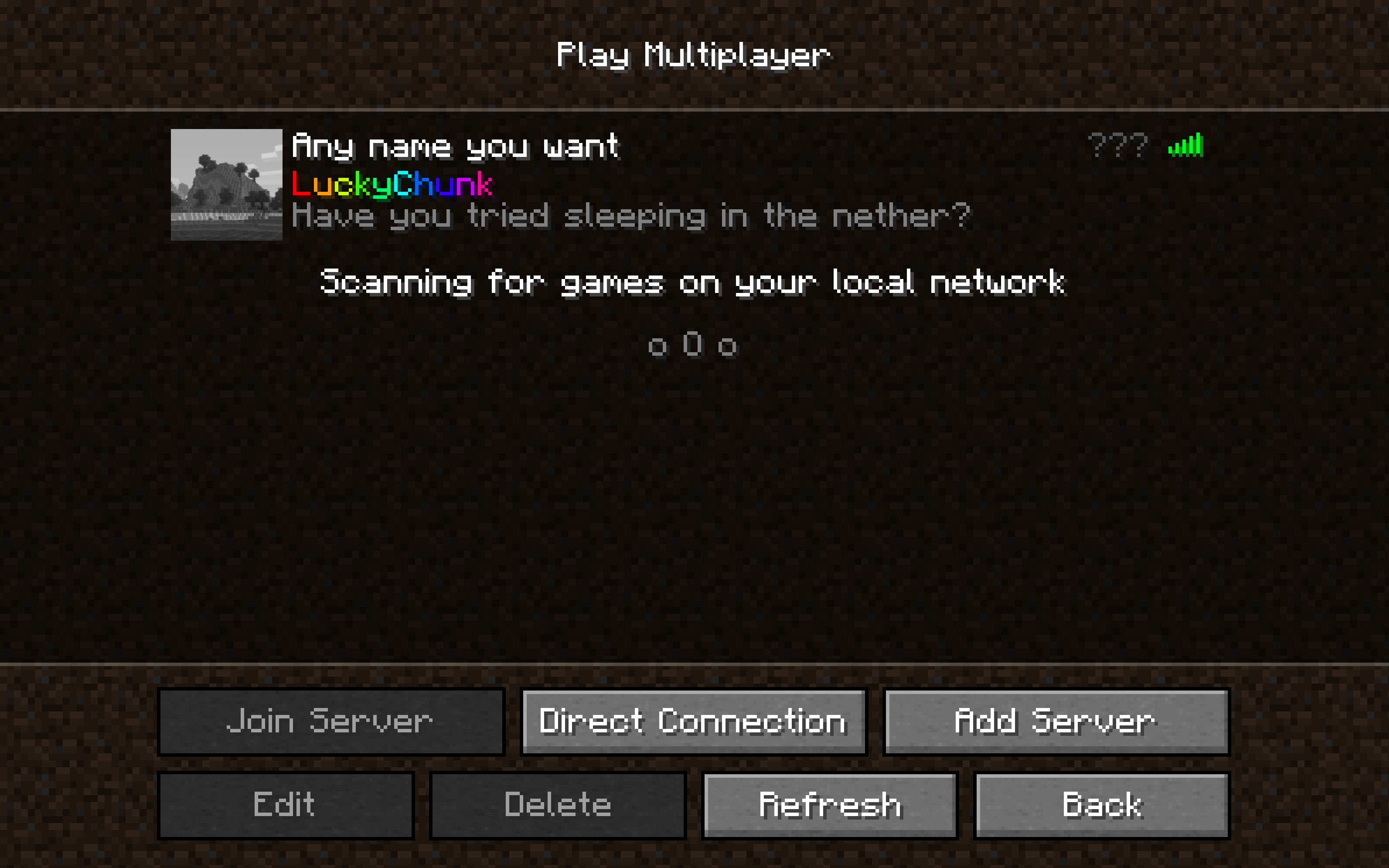
You only do this once. The server stays saved in your Multiplayer list, so next time it's just double-click and play. More detail and edge cases in our how to join a Minecraft server guide.
How to Match Your Minecraft Version
Version mismatch causes more failed Minecraft sessions than everything else combined, so here's how to switch. Say your group plays on a 1.12.2 server and your launcher defaults to the latest version:
- Open the Minecraft Launcher
- Click Installations in the top menu
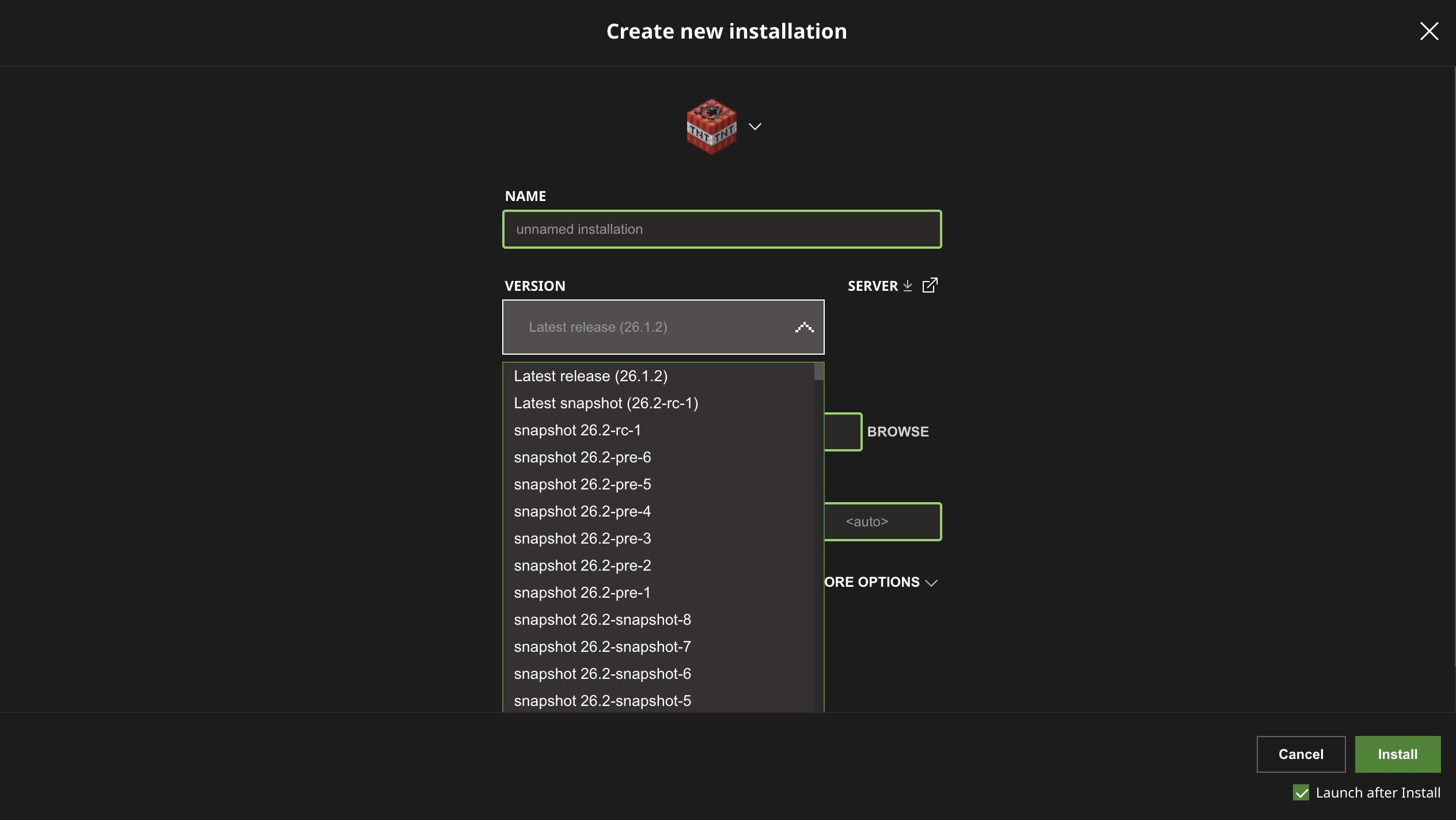
- Click New Installation
- Pick the version from the dropdown, and click Create
- Back on the Play screen, select that installation from the dropdown next to the Play button before launching
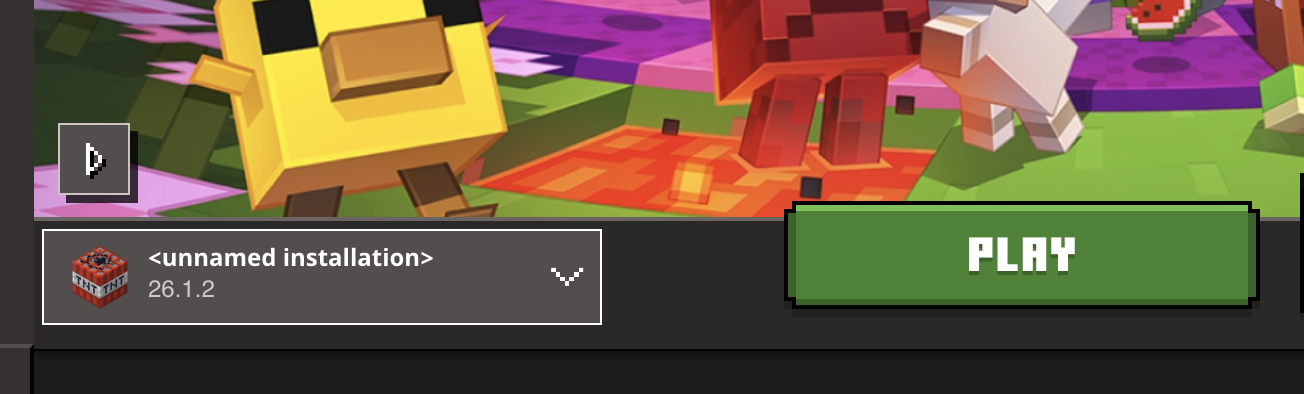
Every player connecting to the server repeats this. The server's version wins - clients adjust to it, never the other way around.
Troubleshooting: When Someone Can't Connect
It happens in basically every group. Here are the errors you'll actually see and what they mean.
"I can't see my friend's LAN world"
Both players need to be on the exact same Wi-Fi network - a phone on mobile data or a laptop on the guest network won't see it. Same game version, too. If both check out, the host's firewall is probably blocking Minecraft; on Windows, allow Java through in the firewall settings.
"Connection timed out"
The server is offline or the address is wrong. Re-copy the address character by character - a missing letter fails silently. On a friend's self-hosted server, this is port forwarding failing about 90% of the time, and they need to recheck their router settings.
"Incompatible client! Please use [version]"
The friendliest error on this list because it tells you the fix. Switch your launcher to the version it names using the steps above and reconnect.
"Invalid session" or "Failed to authenticate"
Your login token expired. Close the game completely, quit the launcher, reopen, and log in again. If it keeps happening on every server, you're probably on a cracked client - those can't authenticate, ever.
"Can't keep up! Is the server overloaded?"
The server's hardware can't handle the load. Classic symptom of someone hosting on a laptop while also playing on it. Fewer players exploring new chunks at once helps; moving to proper hosting fixes it for good.
Everything works but it's laggy
Distance and hardware. If the host's PC is across the country on home Wi-Fi, your ping will show it. Data center servers behave better here because they sit on fast connections built for this - it's most of what you're paying for.
So Which One Should You Pick?
Depends on one question: do you want to play right now in the same room, or do you want a world that's there every evening?
- Same room, today: Open to LAN. Free and instant.
- Minigames, no budget: a public server like Hypixel.
- Private world, free, and you enjoy a technical project: self-host it.
- Private world, online with friends, zero hassle: a hosted server. With LuckyChunk you pick a version, pay $20/month, and you're sharing the address before your friends finish installing the right version.
Whatever you pick, the goal is the same one it's always been: a small world, your group, somebody's house getting built way too slowly because everyone keeps wandering off to fight things. Get the setup out of the way and go play.
Quick Answers
Can I play Minecraft with friends for free?
Yes, three ways: LAN if you're in the same house, public servers like Hypixel, or self-hosting a server on your own computer. Each trades money for a limitation - same room only, no private world, or a technical setup with your PC running all the time.
Do we all need to buy Minecraft?
Yes. Every player needs their own paid copy and their own Microsoft account. One copy can't be shared across the group, and pirated clients can't join online servers.
Can Java and Bedrock players play together?
No. They're separate games with separate servers. A group split between PC (Java) and console/mobile (Bedrock) has to pick one edition.
How many friends can play on one server?
LAN handles 3-4 before it hurts. A self-hosted server depends on the host's hardware. A LuckyChunk server supports up to 20 players at the same time, which covers just about any friend group.
Does the server stay online when I'm not playing?
On LAN and self-hosting, no - the world lives on the host's computer. On a hosted server, yes: it runs in a data center 24/7, so your friends can play while you're not around.