Home›Guides›Minecraft LAN Not Working? Every Fix That Actually Helps
Minecraft LAN Not Working? Every Fix That Actually Helps
Updated Jul 2, 2026 · 7 min read
On this page
When Minecraft LAN isn't working, it's almost always one of three things, in this order: the two
computers aren't actually on the same network, the host's firewall is blocking Java, or your game versions
don't match. Check those three before anything else: same exact Wi-Fi name on both machines (no
guest network, no hotspot, no VPN), allow Java through the host's firewall, and confirm both games show the
exact same version number. Below is the fix for each specific symptom.
LAN is supposed to be the easy one - same house, same Wi-Fi, click "Open to LAN," play. When it doesn't work,
there's no error log and no support to call, just a friend's world refusing to appear.
The good news: LAN failures are boring. It's the same three causes over and over, and every one is fixable in a
couple of minutes. Find your symptom below.
"LAN world not showing up" in Multiplayer
When the LAN world never appears under "Scanning for games on your local network," work through these in order -
it's sorted by how often each one is the culprit:
Confirm you're on the exact same network. Same Wi-Fi name, on both machines, checked
right now - not "we're both in the house." The classics: one laptop on the guest network
(guest networks deliberately isolate devices from each other), a phone-hotspot connection someone forgot
about, one PC on Ethernet plugged into a different router, or a VPN running on either
machine - a VPN moves that computer onto a different network no matter what the Wi-Fi says.
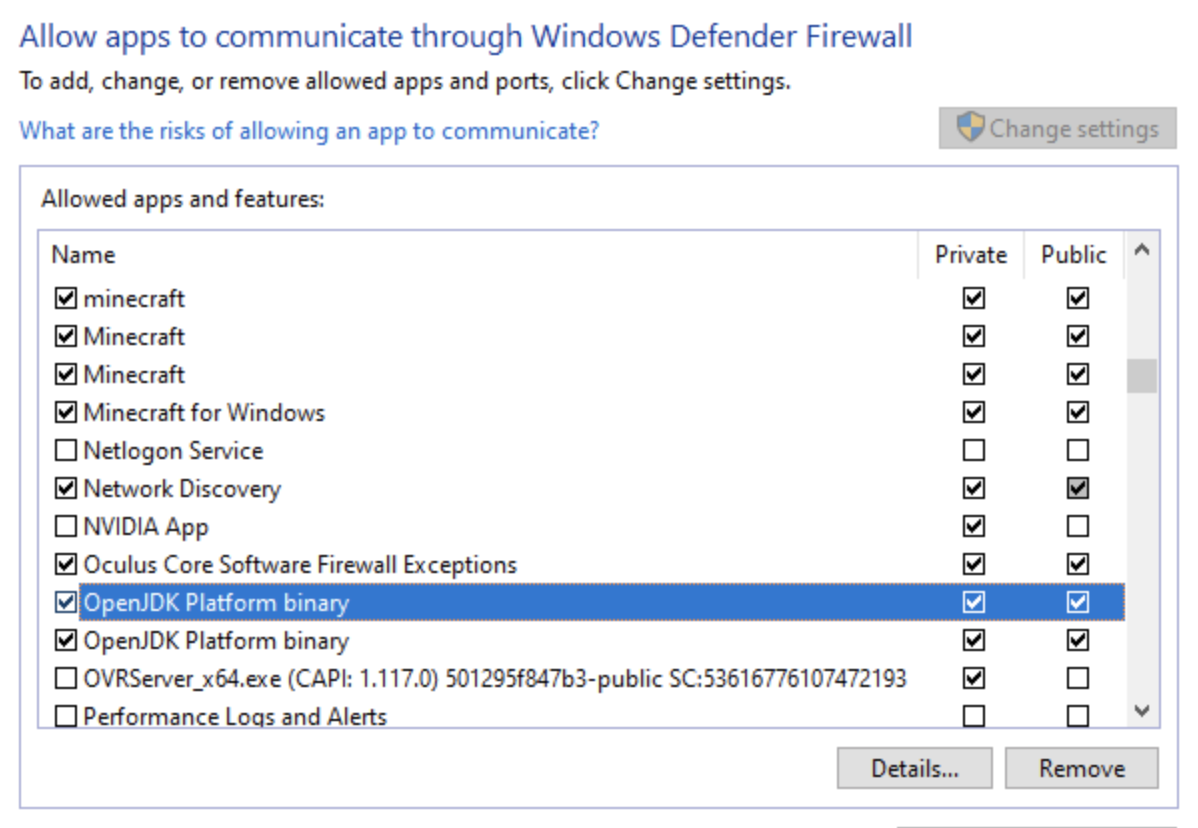
Let Java through the host's firewall. On the host's first server launch, Windows shows an
"Allow access" prompt that everyone instinctively closes - deny it once and Windows silently blocks LAN
forever after. Fix: Windows Security > Firewall & network protection > Allow an app through
firewall, find Java / "OpenJDK Platform binary" (and the Minecraft Launcher), and tick the
boxes. While you're there, check the current network is set to Private, not Public - Windows
treats Public networks as hostile and blocks discovery on them, and it loves classifying home Wi-Fi as
Public.
Match versions exactly. A 1.21 game won't list a 26.2 LAN world. Both title screens should
show the same number, down to the last digit.
Skip discovery with Direct Connection. When the world opened fine but just won't appear,
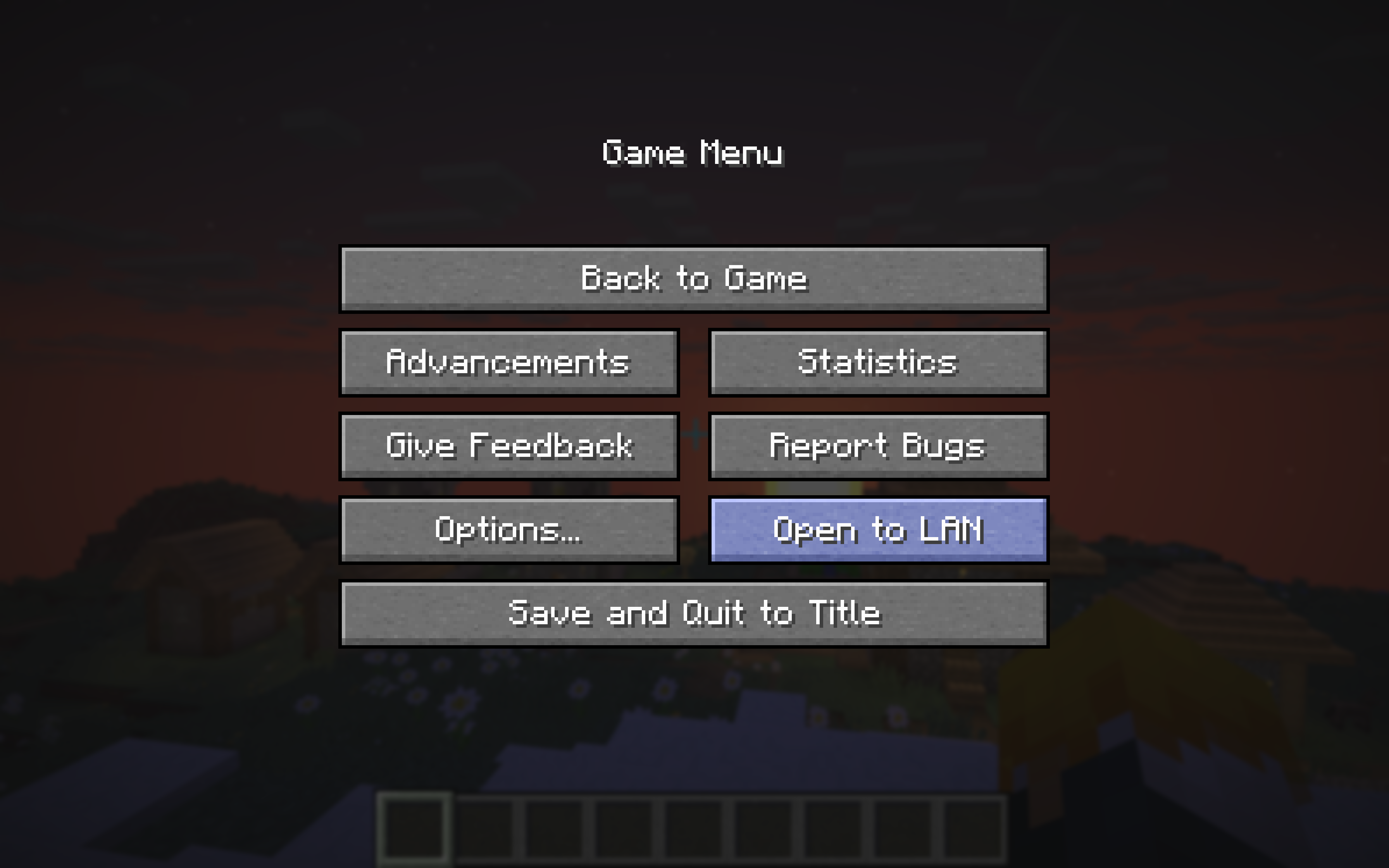
connect to it directly. The host's chat printed a line like "Local game hosted on port 51234" when they
clicked Start LAN World
The host finds their local IP (type ipconfig in Command Prompt; it's the IPv4 address, usually
192.168-something), and the joiner clicks Multiplayer > Direct Connection and enters
that-IP:that-port - for example 192.168.1.42:51234. If Direct Connection works, the game is
fine and it was discovery being blocked, which points back to the firewall step.
You can see the LAN world but can't connect
If the world shows up but joining fails, discovery is working and the actual connection is being blocked - which
makes this a firewall problem nine times out of ten. The announcement that puts the world in your list and the
connection that gets you into it travel differently, and a firewall can allow the first while eating the second.
Run the "Allow an app through firewall" fix from step 2 above on the host's machine, and if
either PC runs a third-party antivirus with its own firewall (Norton, McAfee, Avast), check its allow-list too -
those override Windows' settings.
The other cause is a version mismatch: a mismatched world can still appear in the list, then refuse the join.
Check both title screens.
"Connection timed out" on LAN
A timeout on a local network means the connection is being silently dropped, not refused - and on LAN that's
either a firewall swallowing packets (fix above) or two devices that can technically see each other but can't
talk. The second one has a specific villain: AP or client isolation, a router setting (default
on guest networks, common on mesh systems and apartment/dorm Wi-Fi) that walls off every device from every other
device. If you're on a dorm or hotel network, that isolation is enforced on purpose and you won't get around it -
play on a proper server instead, or one of you hosts a hotspot both machines join.
It worked yesterday and now it doesn't
When LAN breaks with no settings touched, something changed on its own. The usual suspects, in order:
The port changed. Minecraft picks a random port every single time a world is opened to LAN.
Yesterday's Direct Connection address is dead today - re-check the "Local game hosted on port..." line and
use the new number.
A VPN turned itself on. Many VPN apps auto-start with Windows. Either machine quietly joining
a VPN removes it from your network.
Windows updated. Updates can reset firewall rules or flip your network back to Public. Redo
the firewall step - it takes a minute.
Someone's on a different version. The launcher updates to new releases; if one of you
launched the latest version today and the other didn't, the numbers no longer match.
When LAN Can't Work: You're on Different Networks
If you two are in different houses, LAN is not the tool - full stop. LAN means Local Area Network: one router, one
home. There is no setting, mod, or trick that makes "Open to LAN" reach across the internet, no matter what a
YouTube tutorial from 2014 promises. The videos claiming otherwise are quietly setting up third-party tunneling
software, which is just a worse, laggier version of running a real server.
Actually Want to Play Across Houses? That's a Server
The honest fix for "LAN with a friend across town" is a server - a world that lives on the internet instead of
inside the host's game. You've got the free-but-technical route (run it on your own PC - our how to make a Minecraft server guide covers it, port
forwarding and all) and the paid-but-instant route (a hosted server like LuckyChunk: $20/month, up to 20 players,
running in about a minute). Every option, compared honestly, is in our how to play Minecraft with friends guide.
Quick Answers
Why can't my friend see my LAN world?
In order of likelihood: you're not on the exact same Wi-Fi network (guest networks, hotspots, and VPNs all count
as different networks), your firewall is blocking Java, or your game versions don't match. Direct Connection with
the host's local IP and port skips discovery entirely and works when the list won't populate.
Does Minecraft LAN work over the internet?
No. LAN only reaches devices on the same home network, and nothing changes that. Playing with someone in another
house requires a server - self-hosted or rented - which is a different setup with its own guide.
Do we need the same Minecraft version for LAN?
Yes, exactly the same - 1.21.1 and 1.21 won't pair, same as on any server. Both players can check the version
number in the bottom-left of the title screen, and the launcher's Installations tab switches versions in about a
minute.
Why is the LAN port different every time?
Minecraft assigns a random port each time a world is opened to LAN - that's just how the feature works. It only
matters if you join via Direct Connection: get the fresh port from the host's chat line ("Local game hosted on
port...") each session.
Is Open to LAN safe?
Yes. A LAN world is only visible to devices on your own home network, so the exposure is whoever's on your Wi-Fi.
The one caveat: on a shared network you don't control - dorms, hotels - anyone on that network could join, which
is one more reason those networks usually isolate devices in the first place.