To join a Minecraft server, open Minecraft, click Multiplayer, click Add Server, paste the server
address, and click Done - then double-click the server in your list to connect. You need a paid copy
of Minecraft Java Edition, and your game version must match the server's version exactly. If you don't have a
server to join yet, you can create one with LuckyChunk in about a minute - pick a version, pay $20/month, and
share the address with up to 20 friends.
If someone gave you a server address and you're not sure what to do with it, you're in the right place. Joining a
Minecraft server takes about 30 seconds once you know where to click - and when it doesn't work, it's almost
always one of the six errors covered further down.
How to Join a Minecraft Server (Step by Step)
The process is the same whether you're joining a public server or your friend's private server:
Step 1: Get the server address
Every server has an address - either a domain like survival.luckychunk.com or a raw IP like
123.45.67.89. It comes from whoever runs the server: a friend, a hosting panel, or a server listing site
for the big public ones.
Step 2: Add the server in Minecraft
Launch Minecraft Java Edition
Click Multiplayer on the title screen
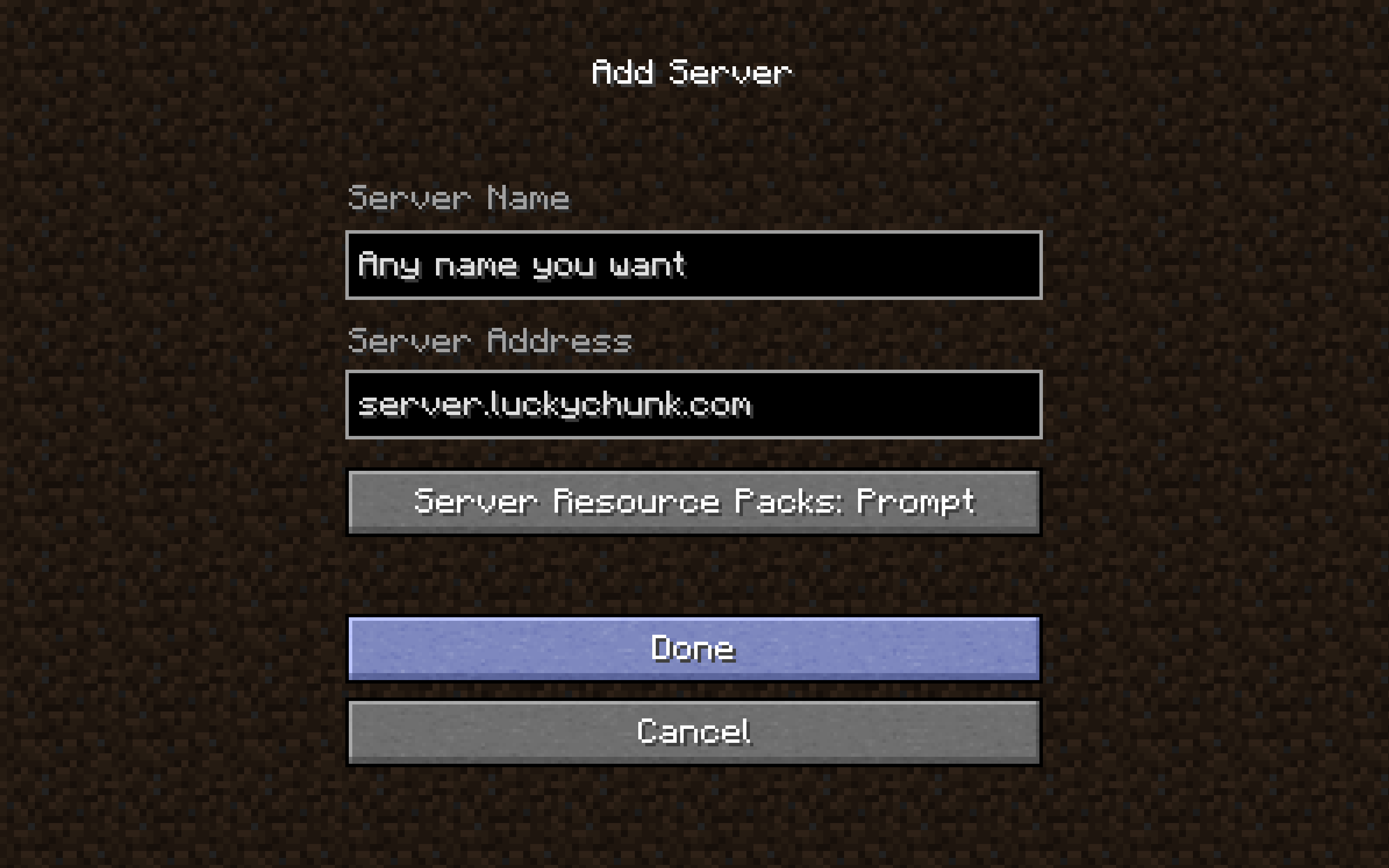
Click Add Server
Type any name you like in the Server Name field (it's just a label), paste the address into
the Server Address field, and click Done
Step 3: Connect
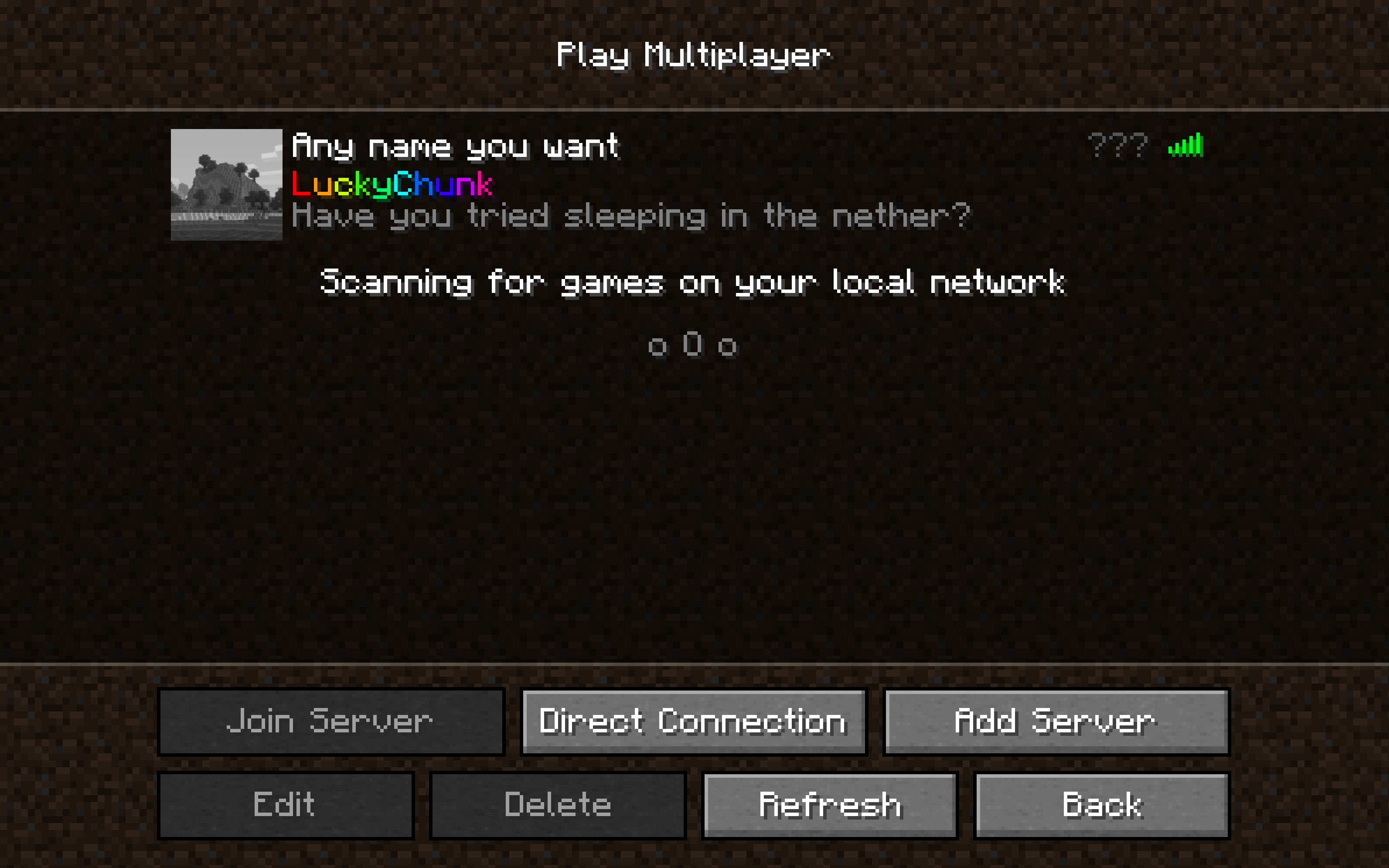
The server appears in your list. Give it a second to respond, then double-click it to join.
The little bar on the right side of the entry is telling you things. Green bars mean the server is online
and reachable - more bars, faster connection. Hover over it to see your ping in milliseconds (under ~100
feels instant; past ~250 you'll notice delay). A red X means Minecraft can't reach the server at all: it's
offline, the address is wrong, or the version doesn't match - the number shown in red next to the entry is the
server's version when yours doesn't line up.
You only do this once. The server stays saved in your Multiplayer list, so next time it's double-click and
play.
What You Need Before Joining
A paid copy of Minecraft Java Edition. Servers verify your login against Mojang's
authentication - pirated and demo versions can't join online servers, ever.
The same version as the server. A 1.12.2 server rejects a 26.2 client, and even 1.21.1
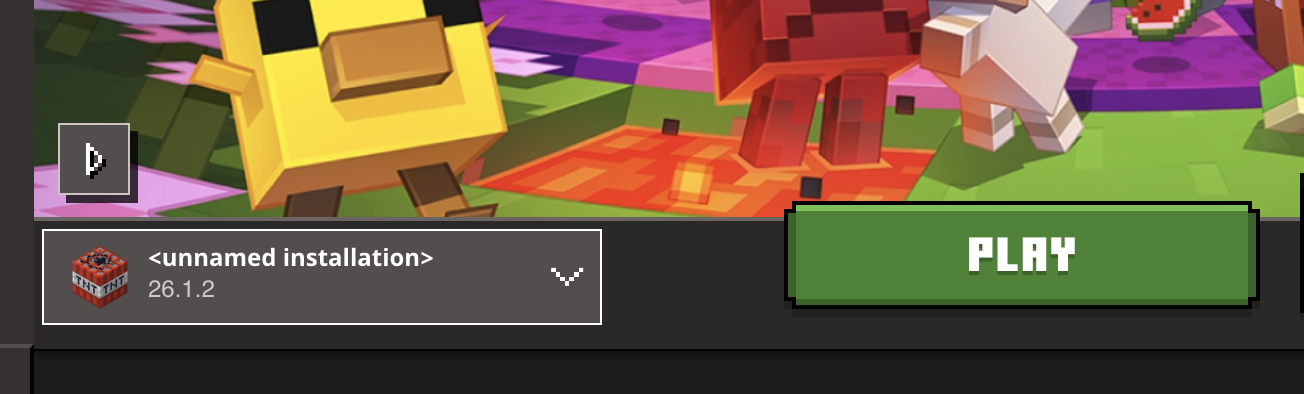
against 1.21 won't connect. The server list shows each server's version - if it doesn't match yours, switch
in the launcher
The full walkthrough, including what switching means for your worlds, is in our how to change your Minecraft version guide.
An internet connection. Obvious, but a surprising number of "can't connect" reports turn out
to be hotel Wi-Fi or a school network blocking game traffic.
Domain or Raw IP - Does It Matter?
No - a domain and an IP address are two ways of writing the same destination, and Minecraft treats them
identically. survival.luckychunk.com is just a name that points at a numeric address, the same way a
contact name points at a phone number. Domains are easier to type and keep working if the server moves to a new
machine, which is why hosting services hand them out. If your friend sends you a raw IP with a colon in it, like
123.45.67.89:25566, keep the colon part - that's the port, and it's part of the address.
Troubleshooting: Errors You'll Actually See
"Can't connect to server"
Either the server is offline or the address is typed wrong. Re-copy it character by character - a trailing space
pasted along with the address is the classic version of this, and it fails silently.
"Connection timed out"
Minecraft reached out and nothing answered. The server is down or overloaded, your connection dropped, or a
firewall is in the way. On a friend's self-hosted server, this is their port forwarding failing about 90% of the
time - the fix is on their end, not yours.
"Outdated client" / "Outdated server"
Version mismatch, and the error names the direction: "outdated client" means the server is newer than you,
"outdated server" means you're newer than it. Either way, you adjust - switch your launcher to the exact version
the server runs using our change your Minecraft version
guide.
"You are not whitelisted on this server"
A whitelist is a guest list: when it's on, only usernames the owner has approved can join, no matter who has the
address. It's the standard way private servers keep strangers out. The fix isn't on your side - send the server
owner your exact Minecraft username (capitalization included) and ask them to whitelist you.
"io.netty.channel..." errors
The long scary ones, like io.netty.channel.AbstractChannel$AnnotatedConnectException: Connection refused.
Despite the looks, it's a plain networking failure: "connection refused" means nothing is listening at that
address (server off, or wrong port), while the timeout variant is the same story as "connection timed out" above.
Restart Minecraft, double-check the address, try again in a minute. If it persists for everyone, it's the
server's problem, not yours.
The server asks me to download a resource pack
Some servers use a resource pack - custom textures and sounds that make their minigames or map look right. The
prompt is normal and accepting is safe; it's game assets, not a program. You can decline, but some servers
require it and will disconnect you, and if the download gets stuck, disconnect and rejoin - it usually completes
the second time.
Types of Minecraft Servers You Can Join
Public servers
Open to everyone - Hypixel is the giant, with tens of thousands of players on at once for Bedwars, SkyBlock, and
duels. Addresses are on the servers' own sites and listing sites like minecraft-server-list.com. Free to join,
fun immediately, but it's not your world and you can't build a base in a minigame lobby.
Private servers (friends only)
Someone in your group runs a server, shares the address, and usually turns on the whitelist so only your friends
get in. This is what people actually mean by "playing Minecraft together" - a persistent world that belongs to
your group. Our how to play Minecraft with friends guide
compares every way to get one.
Don't Have a Server to Join? Create One
If you want your own world for you and your friends, there are two routes:
Self-hosting (free, but a project)
You run the server program on your own PC. It works, and it costs nothing - but you're signing up for port
forwarding, Java setup, and your friends seeing your home IP address, and the server is only online while your
computer is. The full walkthrough is in our how to make a
Minecraft server guide.
LuckyChunk (about a minute)
Pick a Minecraft version - current or old ones like 1.8.8 and 1.12.2 - pay $20/month, and your server is live with
its own address. Up to 20 players, always online, whitelist built into the panel, no technical setup. Your
friends just follow the steps at the top of this page.
Quick Answers
Do I need to pay to join a Minecraft server?
No - joining servers is free and unlimited. The only purchase involved is Minecraft Java Edition itself. Public
servers like Hypixel cost nothing to play on, and joining a friend's server costs you nothing either; whoever
runs the server covers it.
Why can't I see the server my friend sees?
Usually one of three things: a typo in the address (compare yours to theirs character by character), a version
mismatch (you must be on the exact version the server runs), or their server is whitelisted and you're not on the
list yet. If all three check out, have the owner confirm the server is actually online.
What does "not whitelisted" mean?
The server has an approved-players list and your username isn't on it. It's not a ban and you didn't do anything
wrong - the owner just hasn't added you. Send them your exact Minecraft username and you'll be in a minute
later.
Can Bedrock players join a Java server?
No. Java and Bedrock are separate games with separate servers - a friend on Xbox, PlayStation, Switch, phone, or
the Microsoft Store version of Minecraft can't join a Java server. A group split across editions has to pick one
and stick with it.
Is it safe to join random public servers?
Generally yes - joining a server can't harm your computer, and resource packs are just game assets. The real
rules: never type your password in a server's chat (no legitimate server asks), and treat "free rank" links in
chat as the scams they are. Stick to well-known servers and ones run by people you know.