How to Change Your Minecraft Version
On this page
To change your Minecraft version, open the Minecraft Launcher, click Installations, click New Installation, pick the version from the dropdown, save it, and select it next to the Play button before launching. It takes about a minute, it's free, and it works for every version back to the earliest releases. You'll need this whenever a server runs a different version than you - the server's version always wins. And if you want a server on a specific version, LuckyChunk runs the old ones like 1.8.8 and 1.12.2 as well as current releases ($20/month, up to 20 players, ready in under a minute).
The launcher quietly keeps you on the newest version of Minecraft. That's fine until your friend's server runs 1.12.2 and the game refuses to connect with an "Outdated client" error that makes it sound like something is broken.
Nothing is broken. Every version of Minecraft is still in the launcher, and switching between them is a two-minute job. Here's how to do it, plus what it means for your worlds and how to change the version of a server itself.
How to Change Your Minecraft Version in the Launcher
You change versions by creating an "installation" in the Minecraft Launcher - a saved profile that launches a specific version of the game. Here's the full process:
- Open the Minecraft Launcher
- Click Installations in the top menu
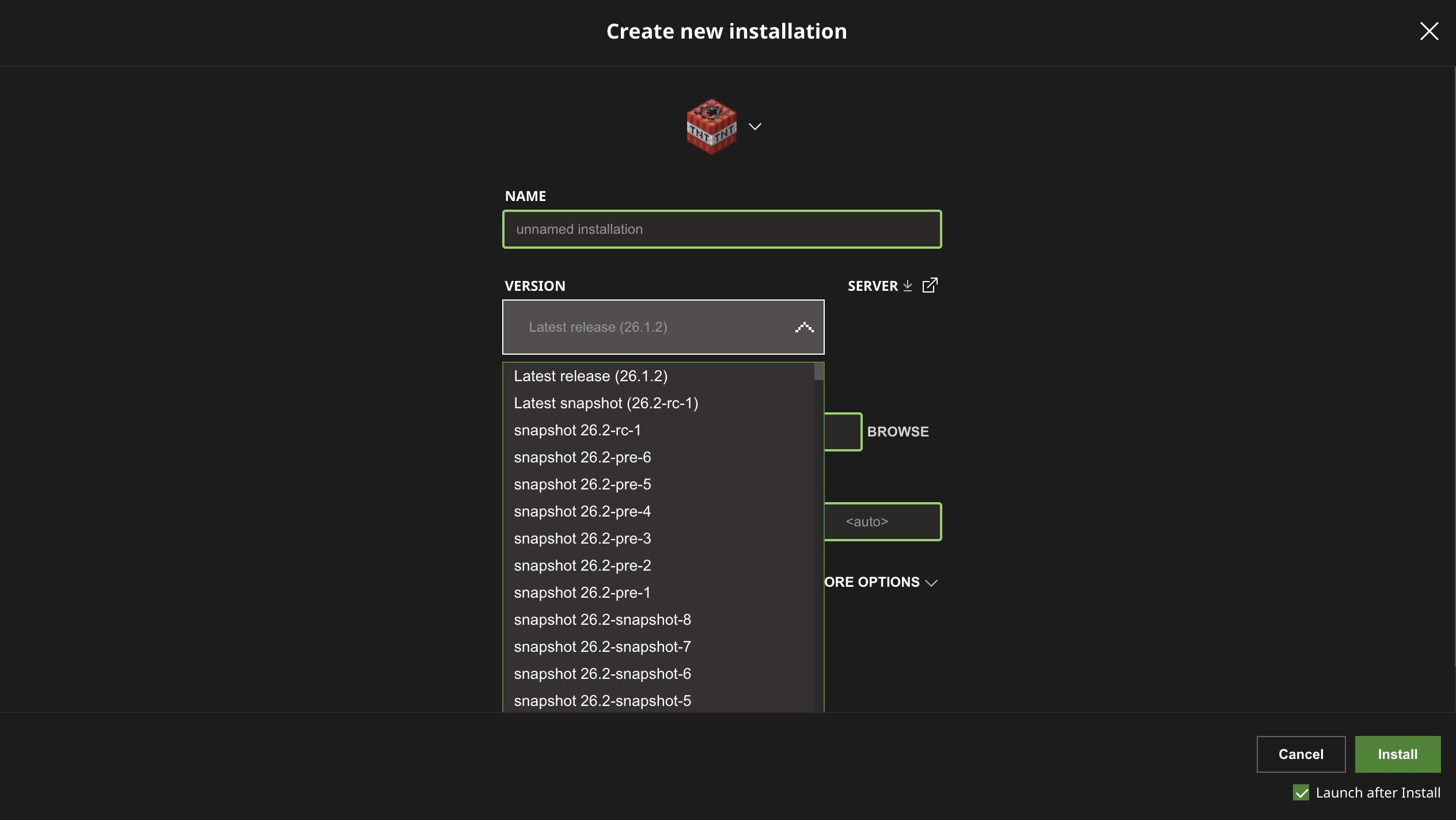
- Click New Installation
- Give it a name you'll recognize later ("1.12.2 for Alex's server" beats "Unnamed installation")
- Pick the version from the Version dropdown and click Create
- Back on the Play screen, select your new installation from the dropdown next to the Play
button, then launch
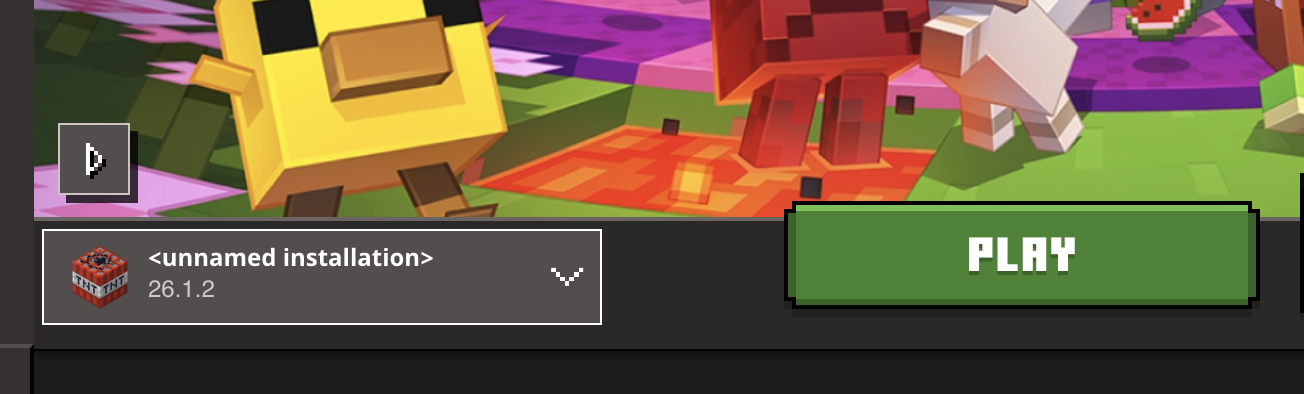
The first launch of an older version downloads some files, so give it a minute. After that it starts as fast as the current version.
Installations stick around. You can keep one for the current release, one for 1.12.2, one for 1.8.9, and hop between them from that Play screen dropdown whenever you want. Switching back is never a reinstall - it's one click.
Why Your Version Matters for Multiplayer
To join a server, your game version must match the server's version exactly - the server never adjusts to you. A 1.12.2 server rejects a 26.2 client, and even 1.21.1 against 1.21 won't connect. When someone in a friend group can't get in, a version mismatch is the cause more often than everything else combined.
Singleplayer doesn't care. You can play any version alone whenever you like. It's only when a server enters the picture that everyone has to line up on the same number, which is why the fix for most "I can't join" problems is the launcher steps above, not anything on the server's end.
If you're setting up multiplayer for the first time, our how to play Minecraft with friends guide covers the whole picture - this page handles the version part.
How to Check What Version a Server Runs
The fastest way to check a server's version is your Multiplayer server list: add the server, and Minecraft shows its version next to the name. If the number is in red, it doesn't match the version you're currently on - that's your cue to create an installation for the version it shows.
Two other ways that work:
- Ask whoever runs it. The server owner picked the version, so they know it. On a LuckyChunk server it's shown right in the panel.
- Hover over the connection bar in the server list - the tooltip includes version info when the server responds.
Never guess from the server's world. New blocks can hint at the version, but "it has cherry trees so it must be 1.20-something" is how you end up creating three wrong installations. Check the list.
What Happens to Your Worlds When You Switch Versions
Changing your version never deletes worlds, but opening a world in a different version follows one-way rules that catch a lot of people off guard:
- Opening a world in a newer version upgrades it permanently. Minecraft warns you with a "this world was last played in version..." message before it does it. Once upgraded, that world will not open in the older version again.
- Older versions refuse worlds from newer versions. A world you played on the current release won't load in 1.12.2 - the game either blocks it or, in really old versions, crashes trying.
So before you open a world you care about in a different version, make a copy. Minecraft has this built in: select the world, click Edit, then Make Backup. The backup lands in your saves as a zip, and it's the difference between "oops" and an actual loss. This one habit makes version switching completely safe.
How to Change the Version of a Server
Changing a server's version depends on where the server runs. On a self-hosted server you replace the server software yourself; on a hosted service it's usually a setting.
On a self-hosted server
- Download the server .jar file for the new version from minecraft.net (the .jar is the server program - one file per version)
- Stop the server and back up the world folder
- Swap the old .jar for the new one and start the server again
- Check the Java requirement while you're at it: Minecraft 1.20.5 and newer needs Java 21, 1.17-1.20.4 runs on Java 17, and anything older wants Java 8
The world rules from the previous section apply to servers too: moving the server up a version carries the world forward permanently, and moving down means the existing world won't load - plan on a fresh world when you downgrade. Full setup details live in our how to make a Minecraft server guide.
On a LuckyChunk server
Version switching is a dropdown in the server panel - pick the new version and the server changes over, no files involved. The same honest warning applies: going to a newer version upgrades the world for good, and going to an older one generally means starting a fresh world, because worlds don't travel backwards. Back up or accept the reset before you switch down.
| Feature | Self-hosted server | LuckyChunk |
|---|---|---|
| How you change the version | Download and swap the server .jar yourself | Pick the version in the panel |
| Time it takes | 10-20 minutes | Under a minute |
| Old versions like 1.8.8 / 1.12.2 | ✓ | ✓ |
| Technical knowledge needed | Java versions, file management | None |
| World survives a downgrade | ✗ | ✗ |
That last row is the same for everyone - it's how Minecraft worlds work, not a limitation of any particular host.
Troubleshooting Version Problems
"Outdated client! Please use..."
The friendliest error in the game, because it names the fix. The server is on a newer version than you - create an installation for the exact version in the message using the steps above and reconnect.
"Outdated server! I'm still on..."
Same problem, other direction: your game is newer than the server. Don't wait for the server to update - switch your launcher down to the version the server runs. Remember it has to be exact, right down to the last number.
The version I need isn't in the dropdown
Scroll - the list is long, and every full release back to 1.0 is in there. The ancient Beta and Alpha releases are hidden by default: enable "Show historical versions of Minecraft: Java Edition in the Launcher" in the launcher's Settings and they join the dropdown. And if a friend's server runs a snapshot (a test version of an upcoming update), you need that exact snapshot, not the release it eventually became.
"This world was last played in a newer version"
You're opening a world in an older version than the one that saved it, and Minecraft is refusing to risk it. There's no supported way to downgrade a world - restore the backup you made in the newer version, or keep that world on the version it's on and start a fresh one for the older version.
Right version, still can't connect
If the versions match and it still fails, the problem is the connection, not the version - wrong address, server offline, or a whitelist you're not on. Our how to join a Minecraft server guide walks through those errors one by one.
Quick Answers
How do I downgrade Minecraft to an older version?
Open the Minecraft Launcher, go to Installations, click New Installation, and pick the older version from the dropdown - then select that installation next to the Play button. Downgrading is free and built into the launcher; every release is available, from the current one down to 1.0 and beyond.
Will changing my Minecraft version delete my worlds?
No. Worlds stay on your computer no matter which version you launch. The risk is opening a world in a newer version (which upgrades it permanently) or an older one (which won't load it), so make a backup with Edit > Make Backup before opening a world you care about in a different version.
Do old Minecraft versions cost extra?
No. One copy of Minecraft Java Edition includes every version ever released. Switching between them in the launcher is free and unlimited.
What version do I need to join my friend's server?
Exactly the version the server runs - check it in your Multiplayer server list, where it appears next to the server's name. Even a small mismatch like 1.21.1 against 1.21 will refuse to connect.
Can I change versions on Bedrock Edition?
Not really. The installations system is a Java Edition feature - Bedrock (consoles, phones, the Microsoft Store version) updates itself and only offers previews of upcoming versions. Playing old versions properly is one of the things Java does that Bedrock doesn't.
Which old versions do people actually play?
1.8.9 for the classic PvP era, and 1.12.2 from the golden age of mods, are the two big ones - plenty of players never left them. If that's the pull, our how to play old Minecraft versions guide covers going back properly, including playing them with friends.